Fixed Assets
With Fixed Assets, you can define up to five depreciation books for customized valuations. Each inventory item can have different depreciation parameters such as method, years, salvage value, and extra depreciation. The Fixed Assets feature can handle Section 179 and other forms of accelerated depreciation, as well as compute depreciation for serialized items and multiple purchase lot bulk items. There are over 20 different standard depreciation methods to choose from with this feature. All General Ledger entries account for both the depreciation accumulation and the recapture on the disposition of the asset. Multiple reports are available for the depreciation accrued as well as the current book value of each piece of equipment.
*** Fixed Asset Module needs to be purchased before you can depreciate Items ***
Depreciation
Depreciation decreases the value of an item over a period of time, allowing you to expense your taxes for the item over time versus all at once. It’s a way of keeping inventory values as accurate as possible by calculating each item vs each purchase line. Appreciations is calculated on the last day of each month and only the first depreciation nonscheduled will post to the General Ledger.
Capitalization
Capitalization of an items means you are going to depreciate the item, Non Capitalization means the item is not going to be depreciated. Capitalization is based on the purchase amount of the item whether it is being treated as an asset or not. If capitalized, when the item is sold, the depreciation value is accounted for in the accrued depreciation account within your General Ledger.
Setting up your Depreciation on a new Item
From the program menu>System Configurations>Parameters>Accounting Tab
Capitalize Extra Charges – This parameter sets whether Extra Charges within an item record are capitalized with the purchase price. If you use the Purchase Order module, the shipping charges, tax and miscellaneous charges are automatically entered into the item’s Extra Charges field. If you are not using the Purchase Order module, you would have to manually add amounts to the Extra Charges field. If you capitalize extra charges, then shipping, taxes and miscellaneous charges would be charged to your asset account and not expense.
Included Extra Charges – This parameter sets whether Extra Charges within a sales item are included in the inventory value. If you use the Purchase Order module, the shipping charges, tax and miscellaneous charges are automatically entered the item’s Extra Charges field. If you are not using the Purchase Order module, you would have to manually add amounts to the Extra Charges field. If you include extra charges, the shipping, taxes and miscellaneous charges would be charged to your asset account and not expense.
Depreciation % - This parameter sets the depletion percentage used for depreciation. This is only used if the Depletion method is chosen for depreciated items.
From the program menu>File Maintenance>Item File>Asset Tab
Asset Tab
1. The capitalized box will need to be check for the item to deprecate.
2. Select the Depreciation button.
3. Marking the item as being capitalized within the Asset tab of the item record allows it to be part of your General Ledger entries at the end of the month.
4. You can set up five depreciation schedules for each item record.
*Note: you can look up the definitions for each deprecation method on line.
5. From the drop-down menu, select the type of depreciation method you will be using. Ex. (Straight Line, 5 year, etc)
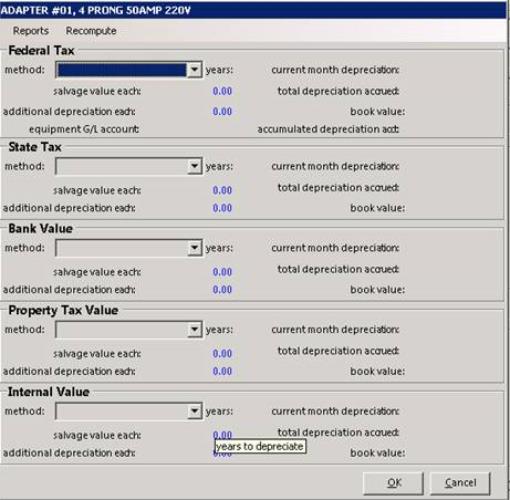
Years: How many years it takes to depreciate the item.
Salvage Value: How much the item will depreciate to. Any number greater than 1.00 will be taken at face value. Anything below 1.00 will calculate as a percentage against the last purchase price to produce a salvage value.
Additional Deprecation: This field holds any extra depreciation taken on this item outside of the normal depreciation. This would be used for accelerated depreciation such as Section 179.
Equipment GL Accounts: This is the equipment inventory account.
Current Month Deprecation: The amount the item has depreciated in the current month.
Total Depreciation Accrued: The total amount the item has depreciated.
Book Value: The value of an asset as entered in a company’s books.
Recompute: Will recompute the depreciation based on any changes that were made to the items record. (This is not normally done. Recomputing will create changes in your General Ledger accounts for previous periods.)
Purchase Tab
1. The purchase tab lists every purchase made for this item. It will show the date, vendor, Purchase Order number, quantity purchased, quantity sold, extra charges and purchase price. By double clicking on the date or price, you will see other information about the purchase such as serial number. If you click on the vendor name, the vendor’s record will be displayed.
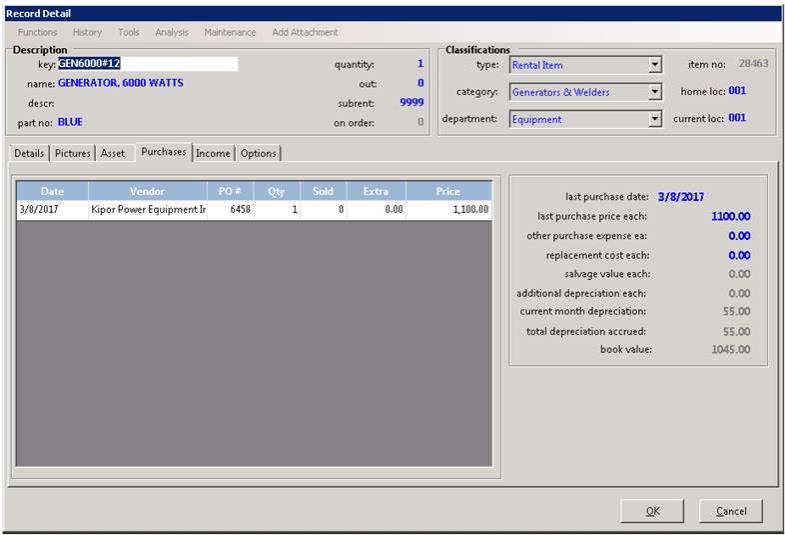
2. Depreciation will need to be set for each serialized item.
Right click on the purchase, will allow you multiple options to view, add or improve the purchase item.
View Purchase Details – Allows to set the depreciation base on each purchase line. You will be able to set the date, quantity purchased, quantity sold, each price, Depreciation method, years to depreciate, Salvage Value, Additional Depreciation, Current Month Deprecation, Total Depreciation and Book Value.

Add Purchase Line – Will add another purchase line underneath the purchase tab.
Improvement – When you want to add more value to the item and depreciate the expense.
3. Depreciation and purchase history cannot be changed on the header item.
4. Depreciation can be set up on the header item for reference for any new serialized item only.